
How it works
The Slack connector indexes all public channels for a given workspace. To index private channels, add the Slack App to the private channel.Setting up
Authorization
Navigate to Slack Apps
Navigate and sign in to https://api.slack.com/apps.
Create new Slack app
Create a new Slack app: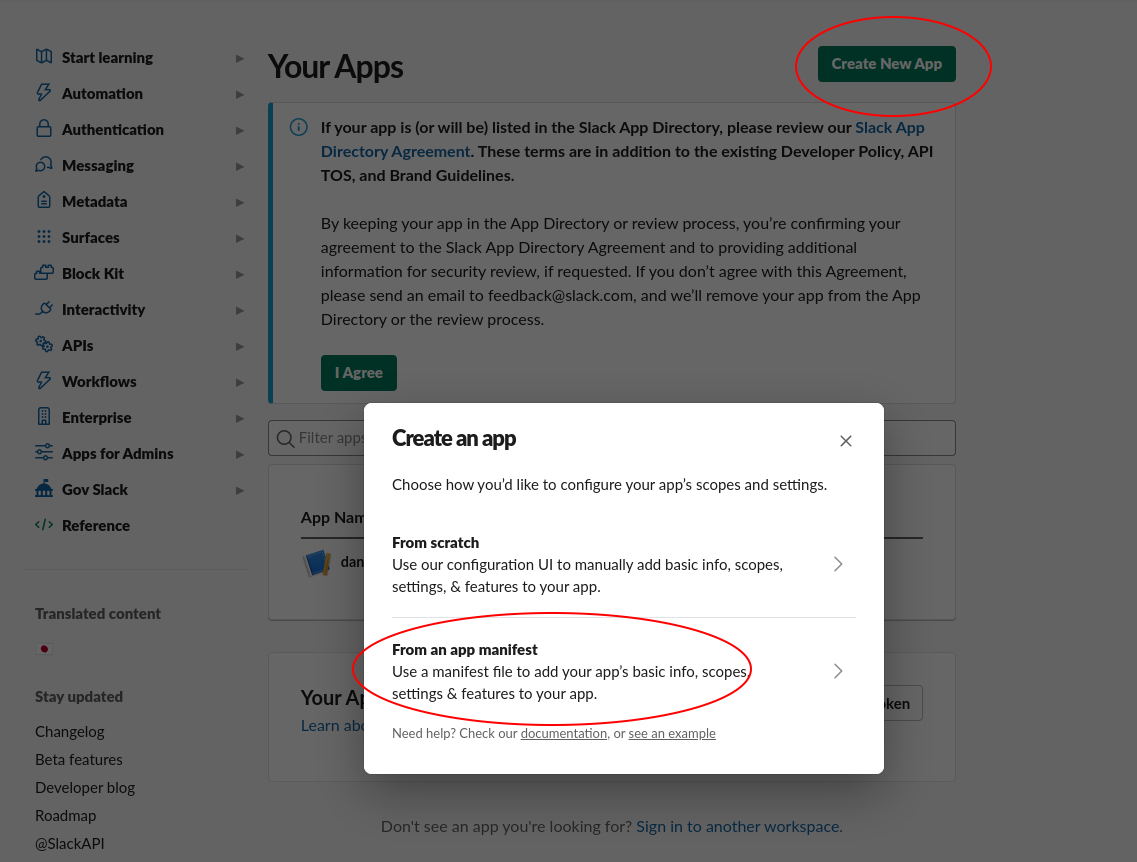
- Click the Create New App button in the top right.
- Select From an app manifest option.
- Select the relevant workspace from the dropdown and click Next.
Configure app manifest
Select the “YAML” tab, paste the following manifest into the text box, and click Next:
Navigate to OAuth permissions
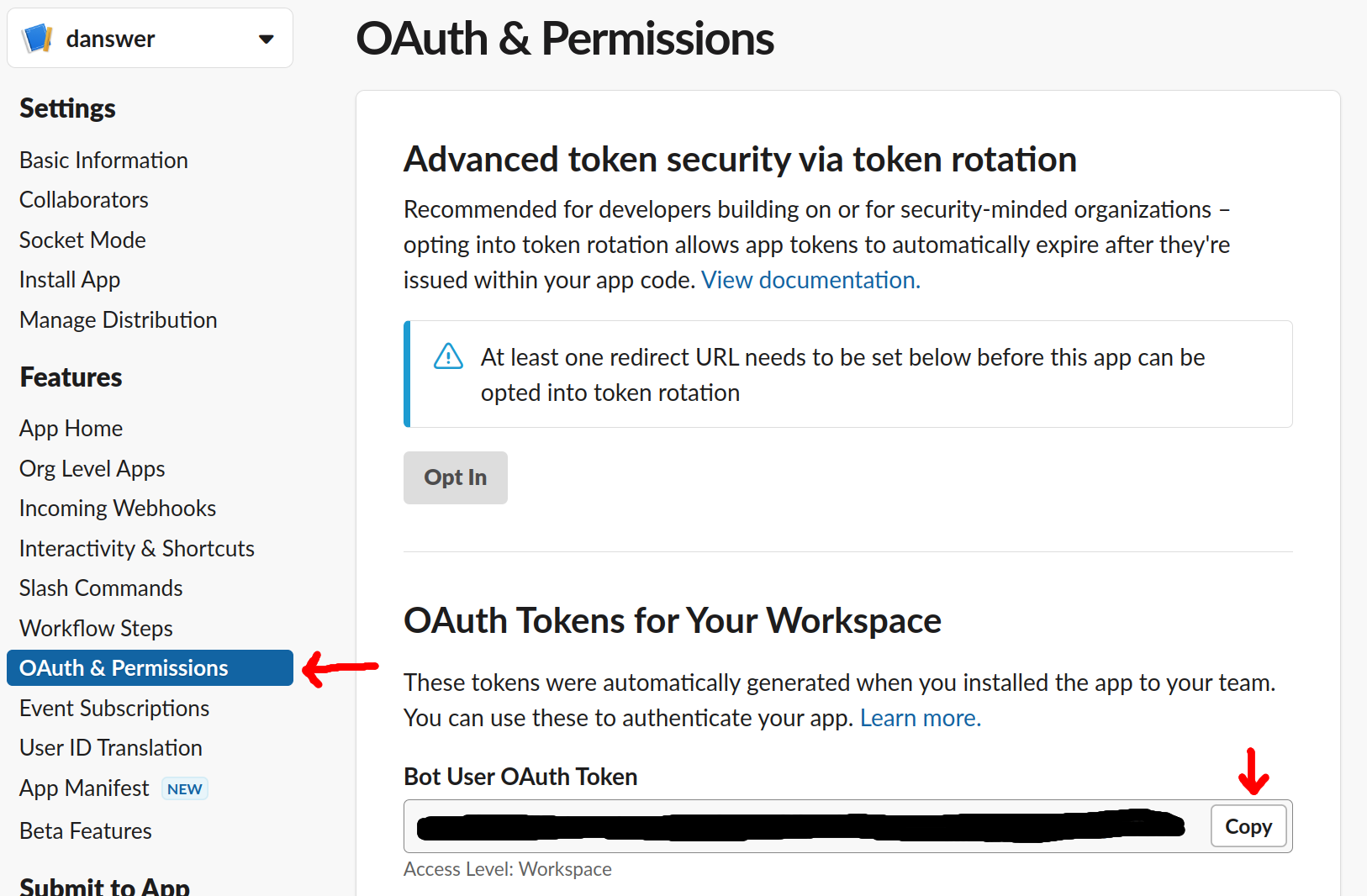
In the app page, navigate to the OAuth & Permissions tab under the Features header.
Indexing
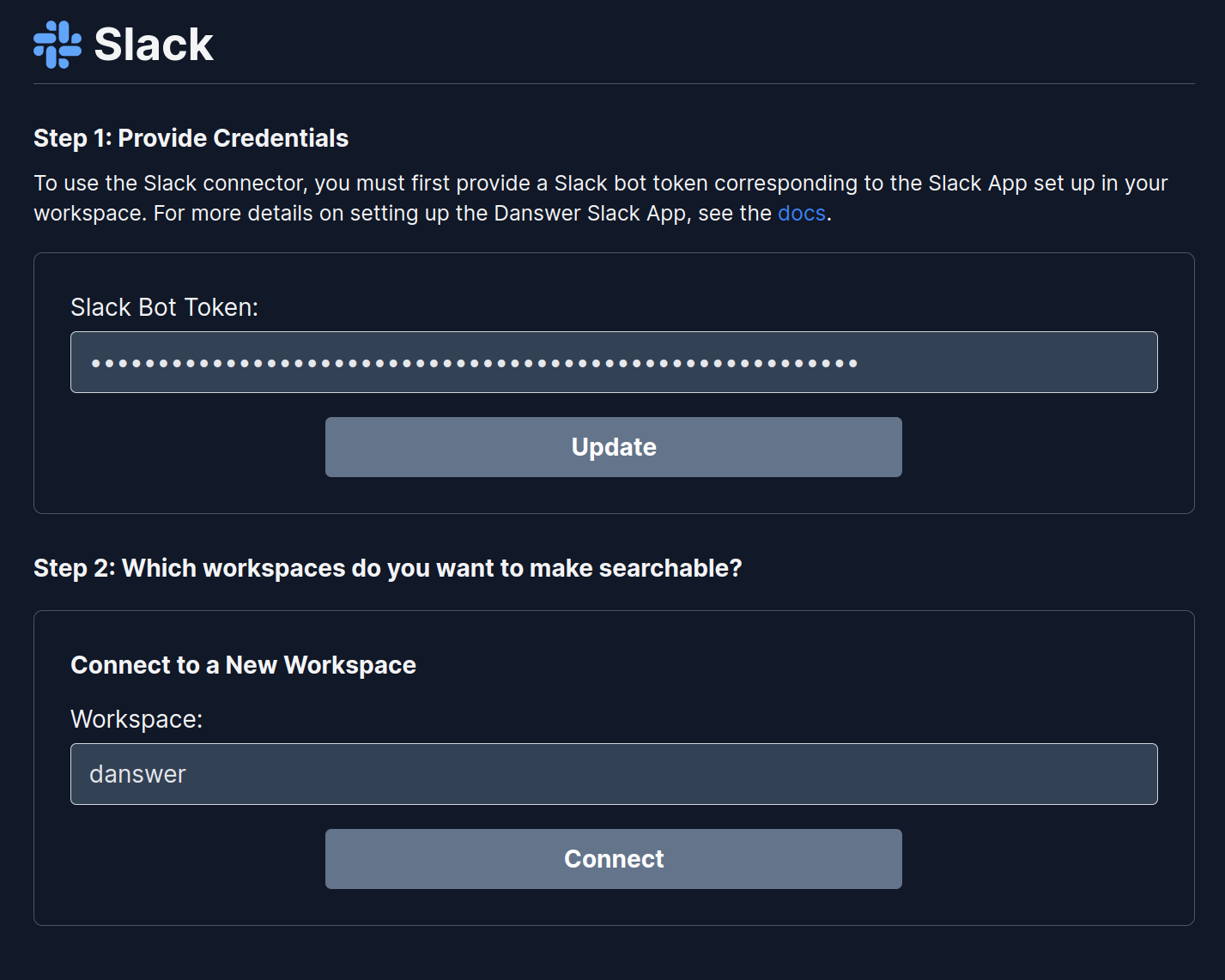
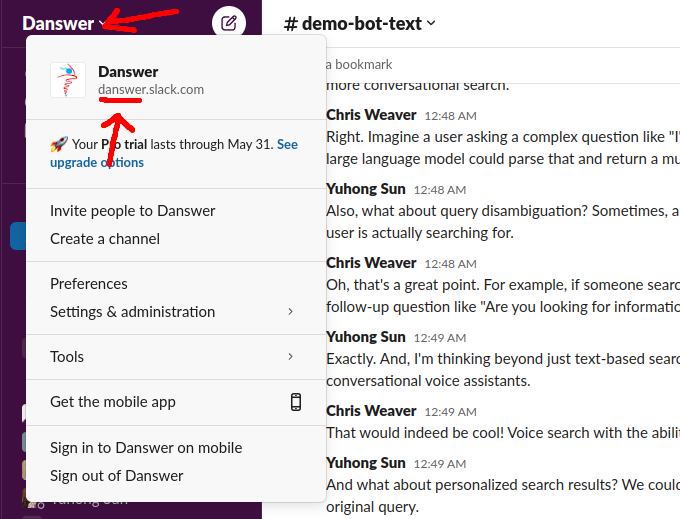 Note: The first indexing pulls all of the public channels and takes longer than future updates.